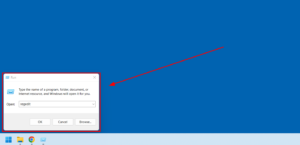


If you want your Windows 11 computer to announce the time automatically at every hour, this guide will help you set it up in a clean, reliable way — without installing any third-party software.
What we will use?
- PowerShell (built into Windows)
- Task Scheduler (built into Windows)
- Windows Text-to-Speech voice (male or female, depending on what’s installed)
By the end, your PC will speak: “The time is 03 00 PM”…at every hour, as long as the computer is ON.
Part A: Create the “Speak Time” Script (PowerShell)
Step 1: Create a folder for your script
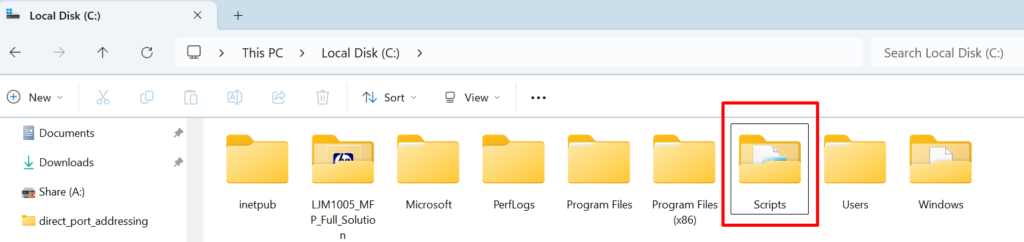
- Open File Explorer
- Go to C drive
- Create a new folder named: Scripts, as shown below –
Step 2: Create the PowerShell script file
- Open Notepad or create a new text file.
- Paste the following code in it:
Add-Type -AssemblyName System.Speech
$speaker = New-Object System.Speech.Synthesis.SpeechSynthesizer
$time = Get-Date -Format "hh mm tt"
$speaker.Speak("The time is $time")- In menu of the text file, click File → Save As
- Save it as:
speak_time.ps1 - Save location i. e. the path to save this file:
C:\Scripts\ - In “Save as type”, choose All Files
- Encoding can remain UTF-8 as shown in following screenshot.
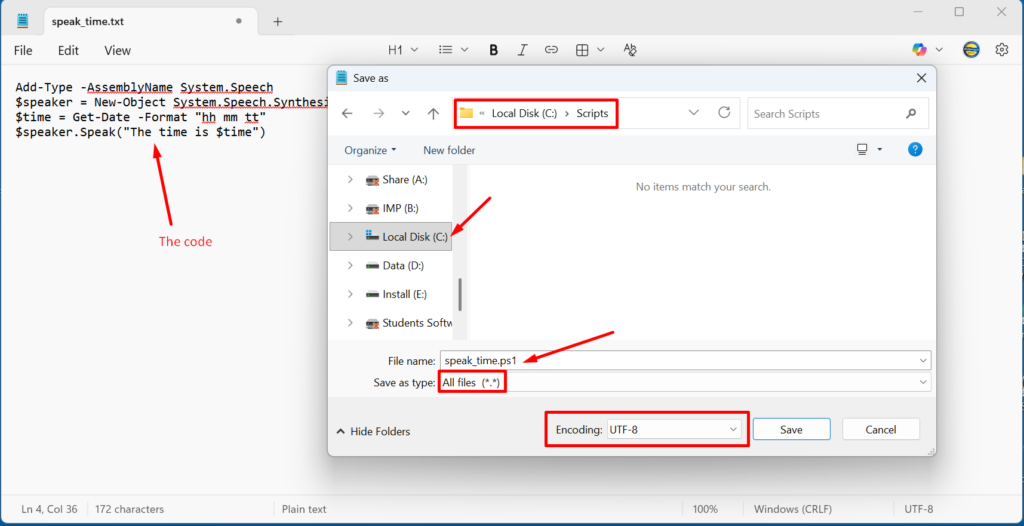
Now your script file is saved at this path: C:\Scripts\speak_time.ps1 and you are ready for the next step. This path is very important. You will have to remember this path for the next steps.
Part B: Select Male/Female Voice (Optional, but Recommended)
Windows uses installed Text-to-Speech voices. Many PCs will have only one voice by default, but you can install more voices.
Step 3: Check and install voices in Windows 11
- Open Settings
- Go to: Accessibility → Speech
- Look for Voices
- If you see multiple voices, great.
- If you want more voices, use: Add voices (if available)
Step 4: Modify the script to force a specific voice (Male/Female)
- If your PC has multiple voices installed, you can choose which one to use.
- Open
C:\Scripts\speak_time.ps1in Notepad and use this version. If your PC does NOT have multiple voices installed, then there is always a default voice present in it. In that case ignore this step.
Add-Type -AssemblyName System.Speech
$speaker = New-Object System.Speech.Synthesis.SpeechSynthesizer

# OPTIONAL: choose a specific voice (male/female depends on installed voices)
# To see available voices, run this in PowerShell:
# (New-Object System.Speech.Synthesis.SpeechSynthesizer).GetInstalledVoices() | ForEach-Object { $_.VoiceInfo.Name }

# Example voice selection (replace with your installed voice name)
# $speaker.SelectVoice("Microsoft Zira Desktop")

$time = Get-Date -Format "hh mm tt"
$speaker.Speak("The time is $time")
Part C: Create the Hourly Task in Task Scheduler
Now we’ll tell Windows: “Run this script every hour.”
Step 5: Open Task Scheduler
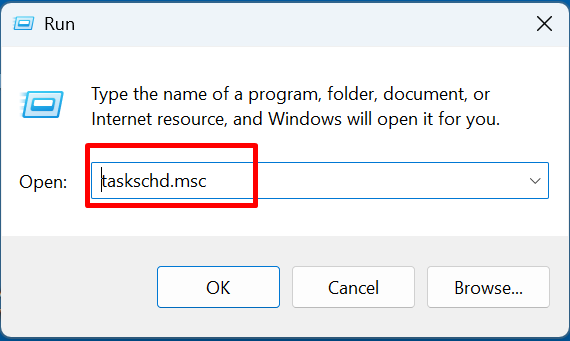
- Press Win + R
- Type:
taskschd.msc - Press Enter
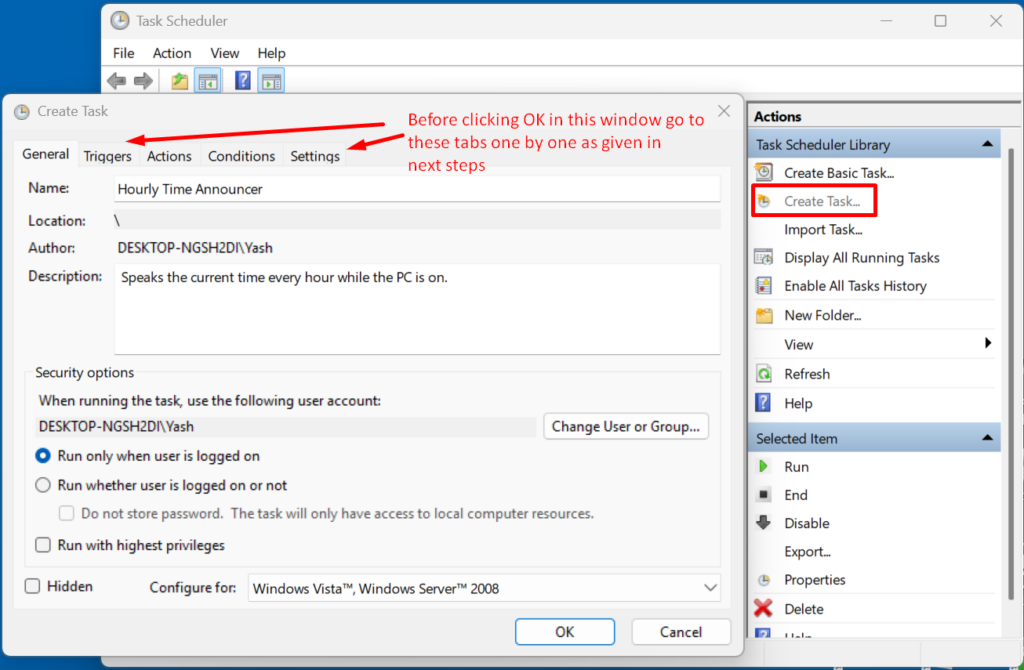
Step 6: Create a new task (Basic Task)
- In the right panel, click Create Basic Task…
- Name it as:
Hourly Time Announcer - Optionally add description:
Speaks the current time every hour while the PC is on.
Step 7: Set the trigger (repeat every hour)
- Select Daily
- Click Next
- et any start date/time (example: today, 09:00 AM)
- Click Next
- On the “Daily” schedule screen:
- Tick: Repeat task every:
1 hour - Duration: Indefinitely
- Tick: Repeat task every:
This step ensures it runs every hour continuously.
Step 8: Set the action (run PowerShell)
- Choose: Start a program
- Program/script:
powershell.exe - Add arguments (IMPORTANT — adjust path if needed):
-ExecutionPolicy Bypass -File "C:\Scripts\speak_time.ps1"- Start in:
C:\Scripts
Step 9: Finish
- Click Finish.
- Now the task is created — but we’ll do two quick improvements for reliability.
Part D: Improve Reliability (Recommended Settings)
Step 10: Open task properties
- In Task Scheduler, click Task Scheduler Library
- Find Hourly Time Announcer
- Right-click → Properties
Step 11: Configure these important options
In the General tab:
- ✅ Run whether user is logged on or not
- ✅ Run with highest privileges
In the Conditions tab (Laptop users):
- If you want it to work on battery too, uncheck:
- ❌ “Start the task only if the computer is on AC power”
Finally click OK to Save.
Part E: Test It Now!
Step 12: Run the task manually (test)
- Go to Task Scheduler Library
- Right-click Hourly Time Announcer
- Click Run
You should immediately hear the computer speak the time.
Download PDF for Advanced Reference
Congratulations! You did it…!
If you have any queries or difficulty, write your comment below this post. We will surely provide you expert guidance…!