
Windows 11 introduced a visually modern interface, but many users—especially students, teachers, programmers, and technical professionals—quickly noticed that basic operations now require extra clicks.One of the most frustrating changes is the new right-click (context) menu, which hides many commonly used options under “Show more options”.
At Vidyasagar Academy, we strongly believe that technology should simplify learning, not complicate it.This article explains a simple, safe, and guaranteed registry tweak that restores the classic Windows 10–style right-click menu in Windows 11.
This method has been tested and verified on Windows 11 systems used in our labs.
In Windows 10 and earlier versions, a single right-click would show all important options such as:
- Copy / Paste
- Rename
- Delete
- Properties
- Open with
- Send to
In Windows 11, Microsoft replaced this with a simplified menu, hiding most options behind an extra click:
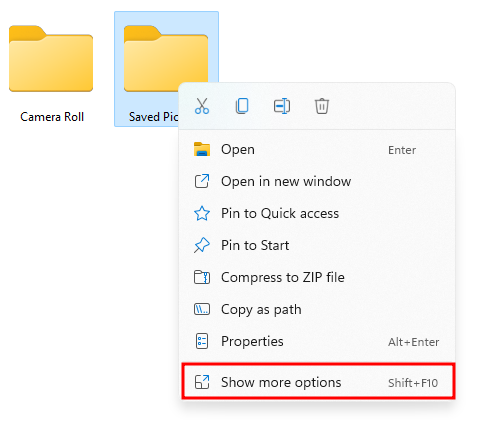
While this may look cleaner, it slows down real work, especially when dealing with files, folders, code, and system tools.
For learners and professionals working with:
- Programming files
- Electronics project folders
- CAD designs
- AI / ML datasets
- System configuration files
…the classic menu is:
- Faster
- More informative
- More productive
- Familiar and intuitive
At Vidyasagar Academy, where efficiency and clarity matter, the classic menu is clearly superior.
Is This Method Safe?
Yes.This method uses a legitimate Windows registry override that:
- Does not require third-party software
- Does not break Windows updates
- Can be reversed easily
- Affects only the current user, not the entire system
However, as with any registry edit, careful typing is essential.
Before You Begin (Important)
- This method works on Windows 11 (especially version 21H2 and later)
- You must have administrator access
- Follow the steps exactly as written
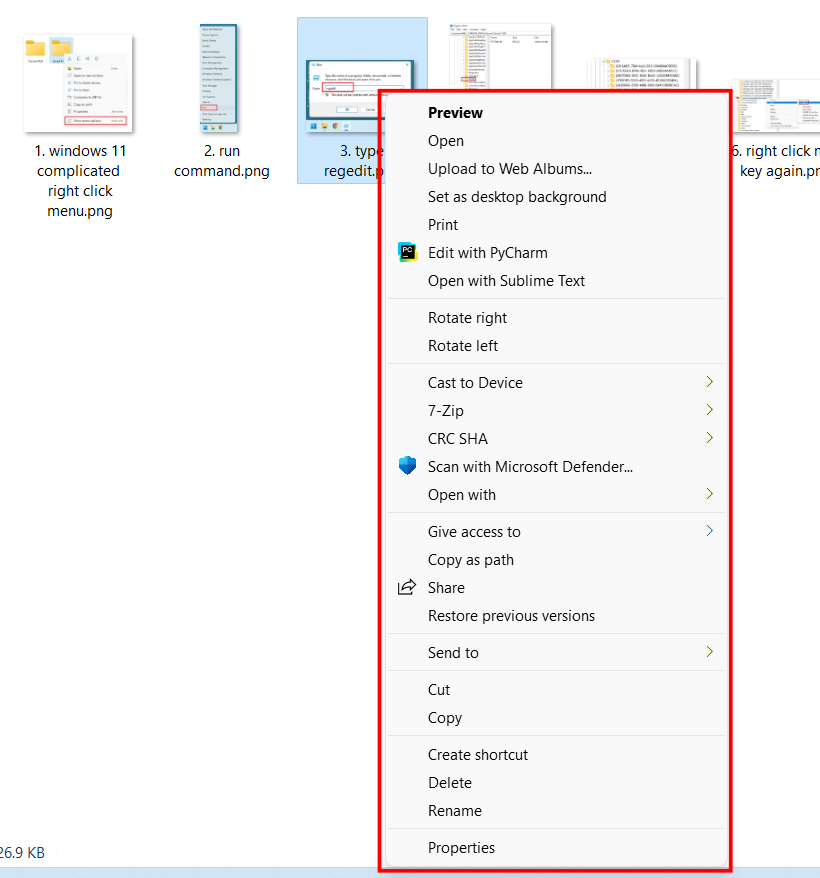
Gallery with each step
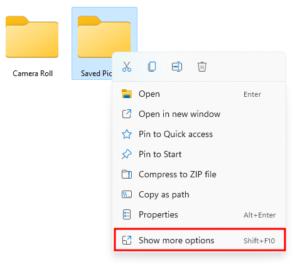
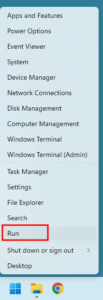
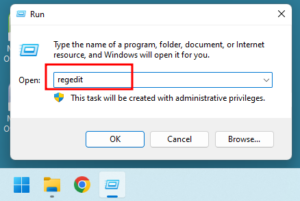
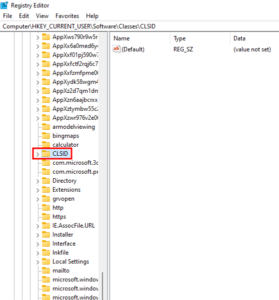
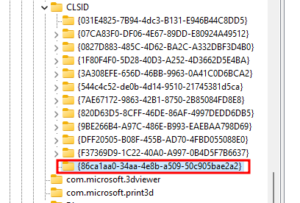
All screenshots given above are in sequence. Click from first image and follow the steps shown in it.
Or you can follow detailed steps as given below…
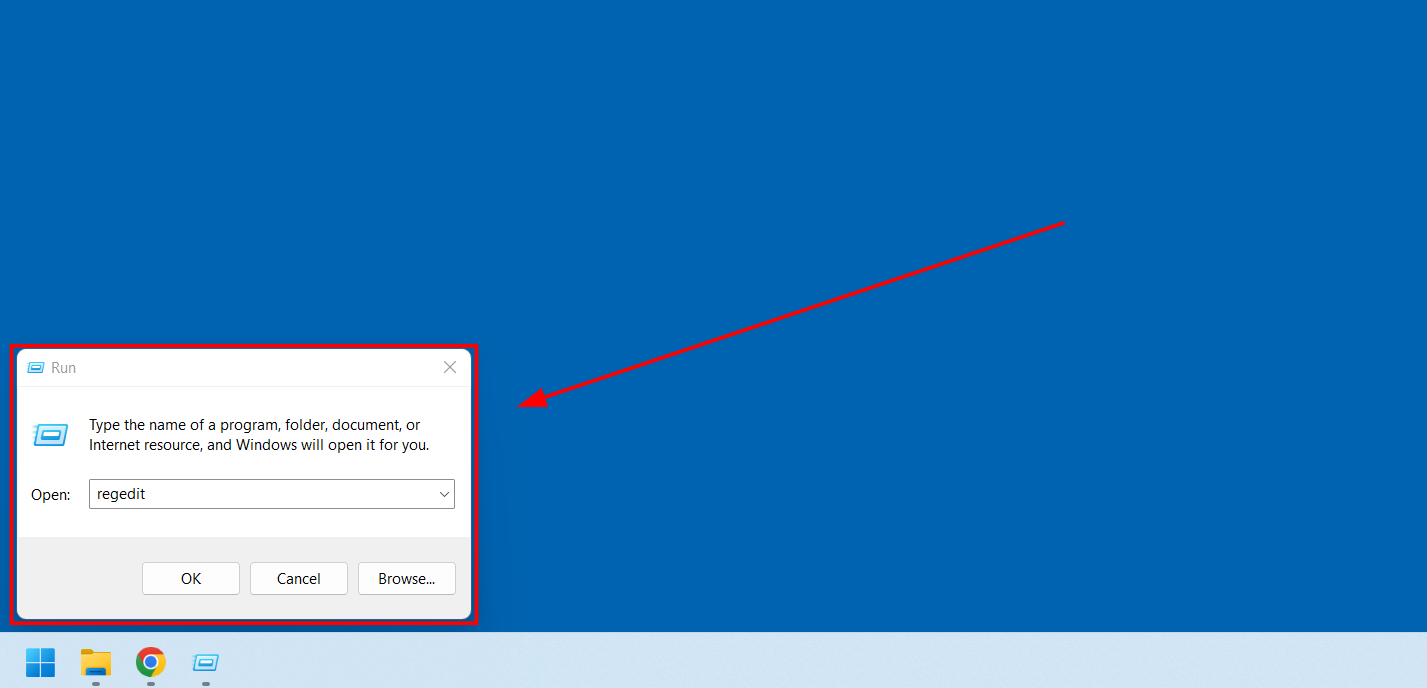
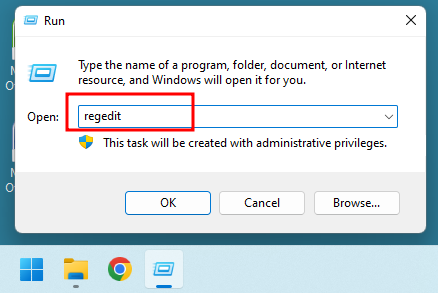
Step 1: Open Registry Editor
- Press Windows + R
- Type:
- Press Enter
- If prompted by User Account Control, click Yes
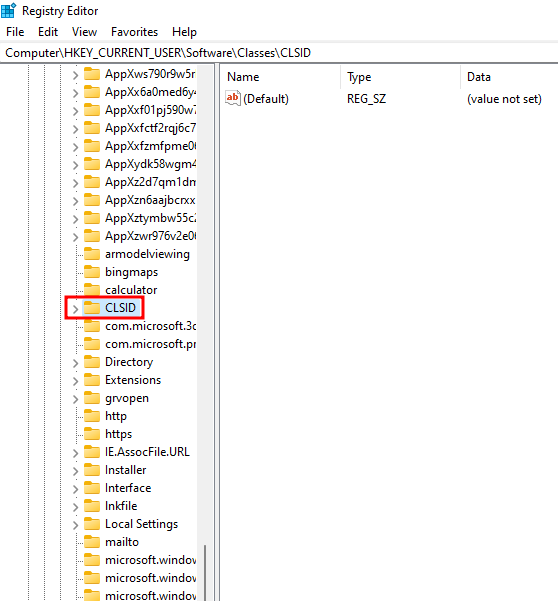
In Registry Editor, go to:
HKEY_CURRENT_USER >> Software >> Classes >> CLSID as shown below –
This location controls how Windows Explorer behaves for the current user.
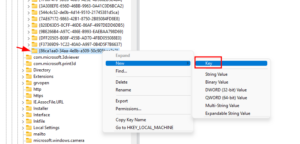
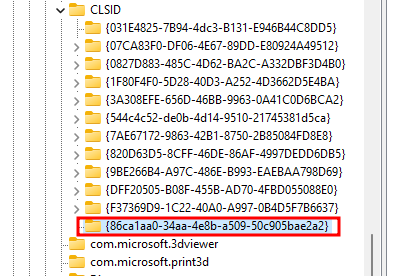
Step 3: Create a New Key with the Exact GUID
- Right-click on CLSID
- Select New → Key
- Name the key exactly as shown below (copy-paste recommended):
{86ca1aa0-34aa-4e8b-a509-50c905bae2a2}⚠️ Even a small typing error will prevent this tweak from working. So copy-paste above value, as shown below –
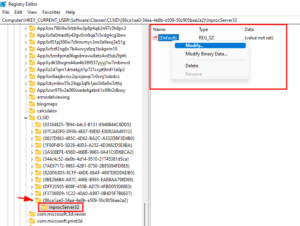
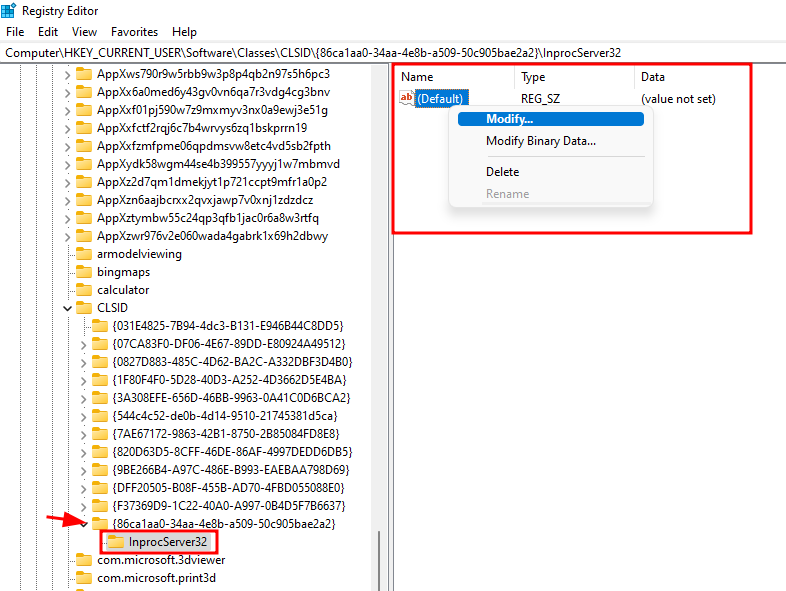
Step 4: Create the InprocServer32 Subkey
- Again right-click on the newly created GUID key
- Select New → Key
- Name it:
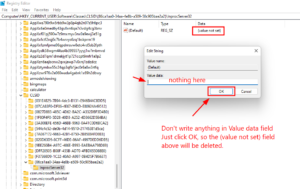
- In the right-hand pane, double-click (Default)
- Delete any text if present
- Ensure the Value data field is completely empty
- Click OK
InprocServer32📌 This step is crucial.
The default value must be blank.
Step 5: Restart Windows Explorer
For the change to take effect, Windows Explorer must reload.
Option A (Recommended):
- Press Ctrl + Shift + Esc
- Find Windows Explorer
- Right-click → Restart
OR
Option B:
- Sign out of Windows and sign in again
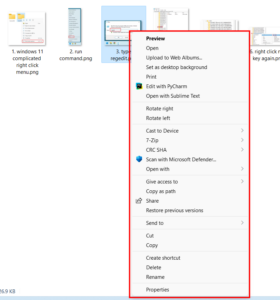
Final Result
After completing the above steps:
- Right-click on any file or folder
- Right-click on the desktop background
You will now see the full classic Windows 10 style right-click menu, without “Show more options”.
This change applies immediately and remains permanent unless manually reverted.
For Non Technical Persons
Just download the classic-menu.reg file by clicking the following button, then unzip the file and then run the file on your desktop. Then restart the computer and the right click menu will be automatically converted into classic menu.
Enjoy…!